Cet article est une sorte de preuve de concept, comment vous pouvez épingler (désépingler) par programme un raccourci sur l'écran de démarrage pour l'utilisateur actuel sans redémarrer ou se déconnecter du compte. Comme vous le savez, avec la sortie de Windows 10 octobre 2018, Microsoft a discrètement fermé l'accès à l'API pour désépingler (épingler) les raccourcis de l'écran de démarrage et de la barre des tâches: à partir de maintenant, cela ne peut être fait que manuellement.
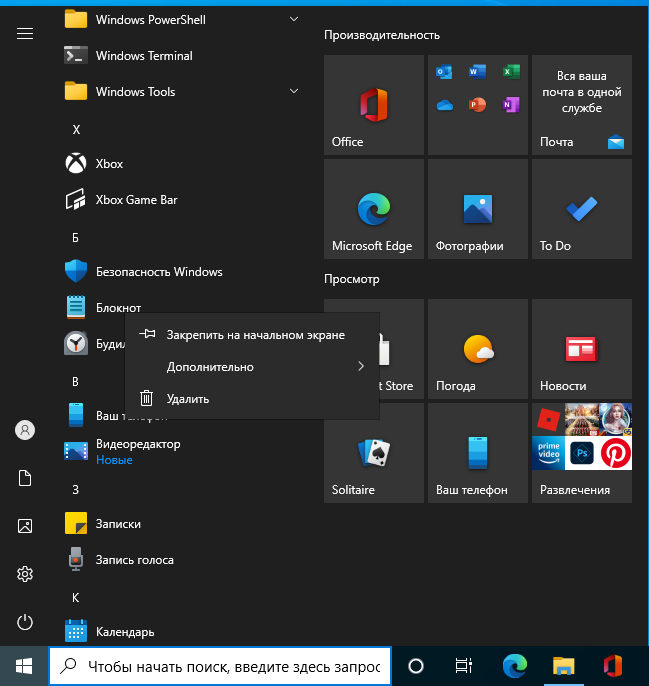
() , - . , , , . , , 51201, « », %SystemRoot%\system32\shell32.dll.

# Extract a localized string from shell32.dll
$Signature = @{
Namespace = "WinAPI"
Name = "GetStr"
Language = "CSharp"
MemberDefinition = @"
[DllImport("kernel32.dll", CharSet = CharSet.Auto)]
public static extern IntPtr GetModuleHandle(string lpModuleName);
[DllImport("user32.dll", CharSet = CharSet.Auto)]
internal static extern int LoadString(IntPtr hInstance, uint uID, StringBuilder lpBuffer, int nBufferMax);
public static string GetString(uint strId)
{
IntPtr intPtr = GetModuleHandle("shell32.dll");
StringBuilder sb = new StringBuilder(255);
LoadString(intPtr, strId, sb, sb.Capacity);
return sb.ToString();
}
"@
}
if (-not ("WinAPI.GetStr" -as [type]))
{
Add-Type @Signature -Using System.Text
}
# Pin to Start: 51201
# Unpin from Start: 51394
$LocalizedString = [WinAPI.GetStr]::GetString(51201)
# Trying to pin the Command Prompt shortcut to Start
$Target = Get-Item -Path "$env:APPDATA\Microsoft\Windows\Start Menu\Programs\System Tools\Command Prompt.lnk"
$Shell = New-Object -ComObject Shell.Application
$Folder = $Shell.NameSpace($Target.DirectoryName)
$file = $Folder.ParseName($Target.Name)
$Verb = $File.Verbs() | Where-Object -FilterScript {$_.Name -eq $LocalizedString}
$Verb.DoIt()
Access is denied. (Exception from HRESULT: 0x80070005 (E_ACCESSDENIED))
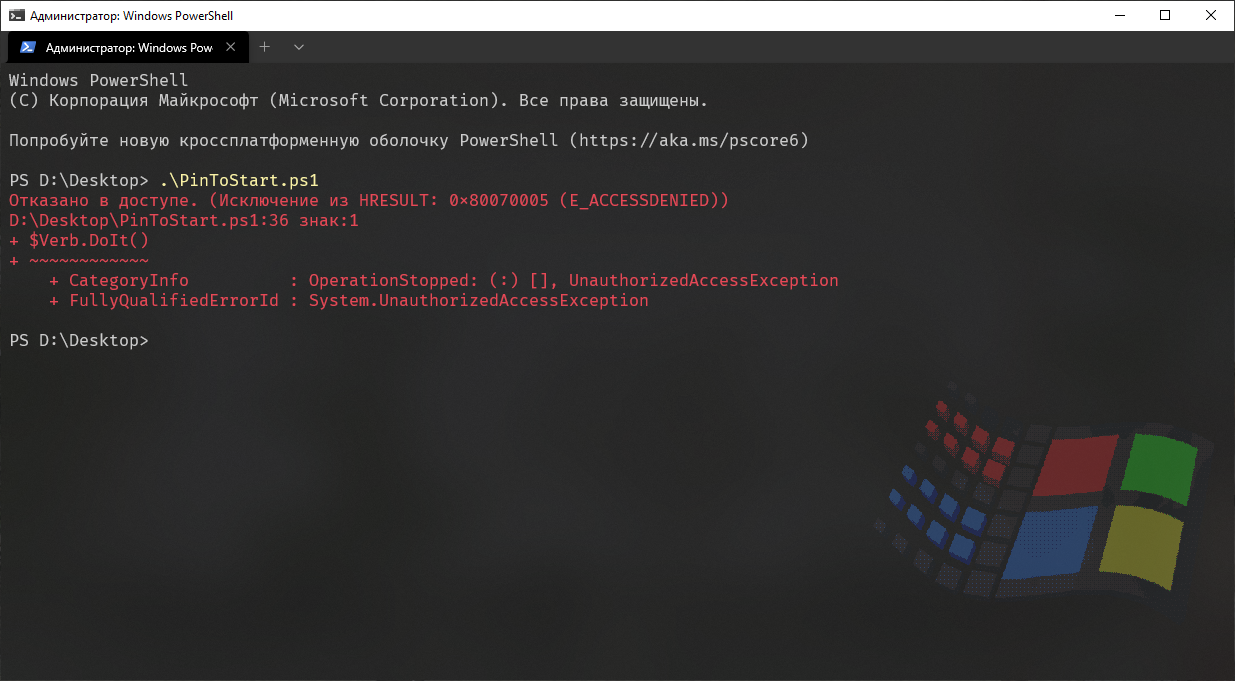
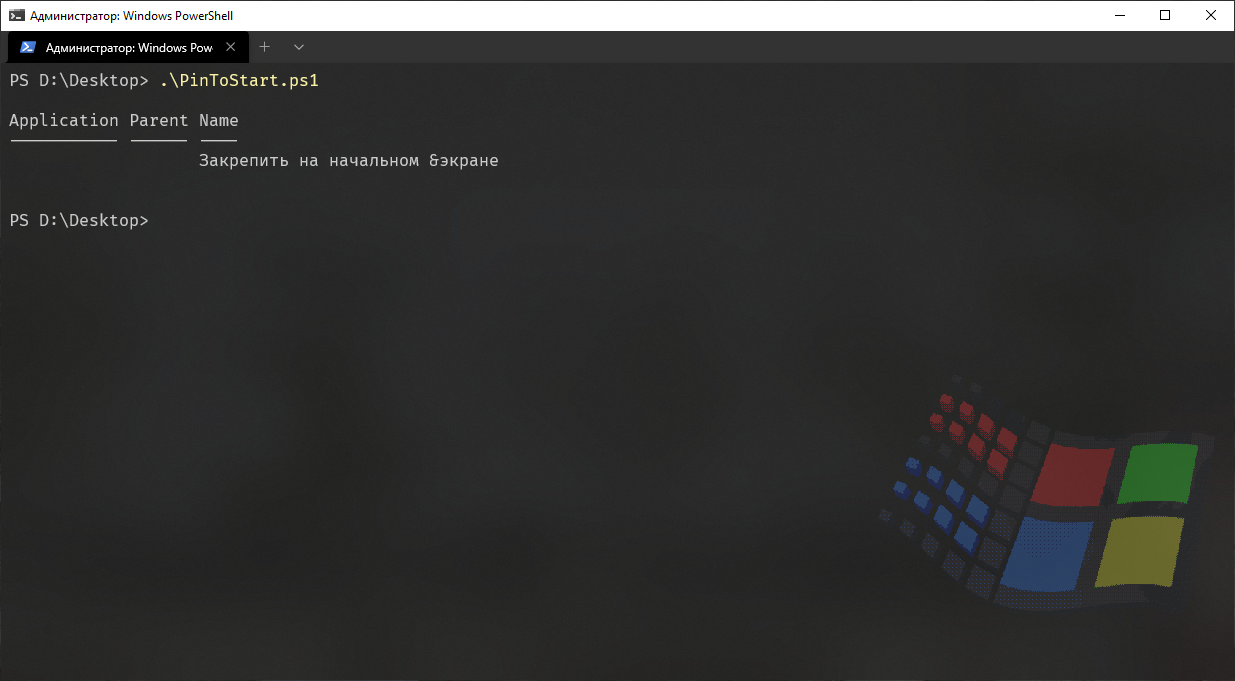
, , API, , « &», .
- , , , Microsoft bloatware. , …
PowerShell- Windows 10 . . . , , , GPO .
, XML. , , : Import-StartLayout -LayoutPath "D:\Layout.xml .
, « » (Prevent users from customizing their Start Screen), XML . , :
;
XML, ( ) ;
À l'aide de la stratégie, désactivez temporairement la possibilité de modifier la disposition de l'écran d'accueil;
Redémarrez le menu "Démarrer";
Ouvrez le menu "Démarrer" par programme afin que sa mise en page soit enregistrée dans le Registre;
Désactivez la stratégie afin de pouvoir modifier la disposition de l'écran d'accueil;
Et ouvrez à nouveau le menu Démarrer.
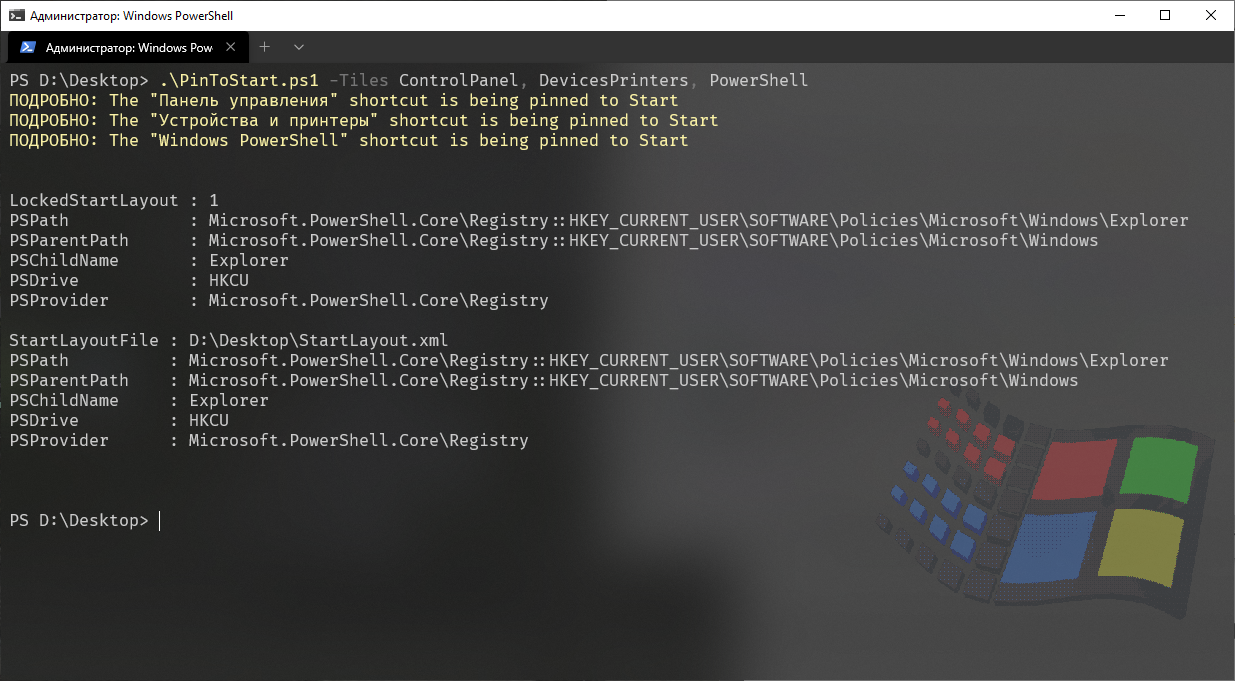
Voila! Dans cet exemple, nous avons personnalisé l'écran de démarrage à la volée en y épinglant trois raccourcis: Panneau de configuration, Périphériques et imprimantes et PowerShell.

Code entier
<#
.SYNOPSIS
Configure the Start tiles
.PARAMETER ControlPanel
Pin the "Control Panel" shortcut to Start
.PARAMETER DevicesPrinters
Pin the "Devices & Printers" shortcut to Start
.PARAMETER PowerShell
Pin the "Windows PowerShell" shortcut to Start
.PARAMETER UnpinAll
Unpin all the Start tiles
.EXAMPLE
.\Pin.ps1 -Tiles ControlPanel, DevicesPrinters, PowerShell
.EXAMPLE
.\Pin.ps1 -UnpinAll
.EXAMPLE
.\Pin.ps1 -UnpinAll -Tiles ControlPanel, DevicesPrinters, PowerShell
.EXAMPLE
.\Pin.ps1 -UnpinAll -Tiles ControlPanel
.EXAMPLE
.\Pin.ps1 -Tiles ControlPanel -UnpinAll
.LINK
https://github.com/farag2/Windows-10-Sophia-Script
.NOTES
Separate arguments with comma
Current user
#>
[CmdletBinding()]
param
(
[Parameter(
Mandatory = $false,
Position = 0
)]
[switch]
$UnpinAll,
[Parameter(
Mandatory = $false,
Position = 1
)]
[ValidateSet("ControlPanel", "DevicesPrinters", "PowerShell")]
[string[]]
$Tiles,
[string]
$StartLayout = "$PSScriptRoot\StartLayout.xml"
)
begin
{
# Unpin all the Start tiles
if ($UnpinAll)
{
Export-StartLayout -Path $StartLayout -UseDesktopApplicationID
[xml]$XML = Get-Content -Path $StartLayout -Encoding UTF8 -Force
$Groups = $XML.LayoutModificationTemplate.DefaultLayoutOverride.StartLayoutCollection.StartLayout.Group
foreach ($Group in $Groups)
{
# Removing all groups inside XML
$Group.ParentNode.RemoveChild($Group) | Out-Null
}
$XML.Save($StartLayout)
}
}
process
{
# Extract strings from shell32.dll using its' number
$Signature = @{
Namespace = "WinAPI"
Name = "GetStr"
Language = "CSharp"
MemberDefinition = @"
[DllImport("kernel32.dll", CharSet = CharSet.Auto)]
public static extern IntPtr GetModuleHandle(string lpModuleName);
[DllImport("user32.dll", CharSet = CharSet.Auto)]
internal static extern int LoadString(IntPtr hInstance, uint uID, StringBuilder lpBuffer, int nBufferMax);
public static string GetString(uint strId)
{
IntPtr intPtr = GetModuleHandle("shell32.dll");
StringBuilder sb = new StringBuilder(255);
LoadString(intPtr, strId, sb, sb.Capacity);
return sb.ToString();
}
"@
}
if (-not ("WinAPI.GetStr" -as [type]))
{
Add-Type @Signature -Using System.Text
}
# Extract the localized "Devices and Printers" string from shell32.dll
$DevicesPrinters = [WinAPI.GetStr]::GetString(30493)
# We need to get the AppID because it's auto generated
$Script:DevicesPrintersAppID = (Get-StartApps | Where-Object -FilterScript {$_.Name -eq $DevicesPrinters}).AppID
$Parameters = @(
# Control Panel hash table
@{
# Special name for Control Panel
Name = "ControlPanel"
Size = "2x2"
Column = 0
Row = 0
AppID = "Microsoft.Windows.ControlPanel"
},
# "Devices & Printers" hash table
@{
# Special name for "Devices & Printers"
Name = "DevicesPrinters"
Size = "2x2"
Column = 2
Row = 0
AppID = $Script:DevicesPrintersAppID
},
# Windows PowerShell hash table
@{
# Special name for Windows PowerShell
Name = "PowerShell"
Size = "2x2"
Column = 4
Row = 0
AppID = "{1AC14E77-02E7-4E5D-B744-2EB1AE5198B7}\WindowsPowerShell\v1.0\powershell.exe"
}
)
# Valid columns to place tiles in
$ValidColumns = @(0, 2, 4)
[string]$StartLayoutNS = "http://schemas.microsoft.com/Start/2014/StartLayout"
# Add pre-configured hastable to XML
function Add-Tile
{
param
(
[string]
$Size,
[int]
$Column,
[int]
$Row,
[string]
$AppID
)
[string]$elementName = "start:DesktopApplicationTile"
[Xml.XmlElement]$Table = $xml.CreateElement($elementName, $StartLayoutNS)
$Table.SetAttribute("Size", $Size)
$Table.SetAttribute("Column", $Column)
$Table.SetAttribute("Row", $Row)
$Table.SetAttribute("DesktopApplicationID", $AppID)
$Table
}
if (-not (Test-Path -Path $StartLayout))
{
# Export the current Start layout
Export-StartLayout -Path $StartLayout -UseDesktopApplicationID
}
[xml]$XML = Get-Content -Path $StartLayout -Encoding UTF8 -Force
foreach ($Tile in $Tiles)
{
switch ($Tile)
{
ControlPanel
{
$ControlPanel = [WinAPI.GetStr]::GetString(12712)
Write-Verbose -Message ("The `"{0}`" shortcut is being pinned to Start" -f $ControlPanel) -Verbose
}
DevicesPrinters
{
$DevicesPrinters = [WinAPI.GetStr]::GetString(30493)
Write-Verbose -Message ("The `"{0}`" shortcut is being pinned to Start" -f $DevicesPrinters) -Verbose
# Create the old-style "Devices and Printers" shortcut in the Start menu
$Shell = New-Object -ComObject Wscript.Shell
$Shortcut = $Shell.CreateShortcut("$env:APPDATA\Microsoft\Windows\Start menu\Programs\System Tools\$DevicesPrinters.lnk")
$Shortcut.TargetPath = "control"
$Shortcut.Arguments = "printers"
$Shortcut.IconLocation = "$env:SystemRoot\system32\DeviceCenter.dll"
$Shortcut.Save()
Start-Sleep -Seconds 3
}
PowerShell
{
Write-Verbose -Message ("The `"{0}`" shortcut is being pinned to Start" -f "Windows PowerShell") -Verbose
}
}
$Parameter = $Parameters | Where-Object -FilterScript {$_.Name -eq $Tile}
$Group = $XML.LayoutModificationTemplate.DefaultLayoutOverride.StartLayoutCollection.StartLayout.Group | Where-Object -FilterScript {$_.Name -eq "Sophia Script"}
# If the "Sophia Script" group exists in Start
if ($Group)
{
$DesktopApplicationID = ($Parameters | Where-Object -FilterScript {$_.Name -eq $Tile}).AppID
if (-not ($Group.DesktopApplicationTile | Where-Object -FilterScript {$_.DesktopApplicationID -eq $DesktopApplicationID}))
{
# Calculate current filled columns
$CurrentColumns = @($Group.DesktopApplicationTile.Column)
# Calculate current free columns and take the first one
$Column = (Compare-Object -ReferenceObject $ValidColumns -DifferenceObject $CurrentColumns).InputObject | Select-Object -First 1
# If filled cells contain desired ones assign the first free column
if ($CurrentColumns -contains $Parameter.Column)
{
$Parameter.Column = $Column
}
$Group.AppendChild((Add-Tile @Parameter)) | Out-Null
}
}
else
{
# Create the "Sophia Script" group
[Xml.XmlElement]$Group = $XML.CreateElement("start:Group", $StartLayoutNS)
$Group.SetAttribute("Name","Sophia Script")
$Group.AppendChild((Add-Tile @Parameter)) | Out-Null
$XML.LayoutModificationTemplate.DefaultLayoutOverride.StartLayoutCollection.StartLayout.AppendChild($Group) | Out-Null
}
}
$XML.Save($StartLayout)
}
end
{
# Temporarily disable changing the Start menu layout
if (-not (Test-Path -Path HKCU:\SOFTWARE\Policies\Microsoft\Windows\Explorer))
{
New-Item -Path HKCU:\SOFTWARE\Policies\Microsoft\Windows\Explorer -Force
}
New-ItemProperty -Path HKCU:\SOFTWARE\Policies\Microsoft\Windows\Explorer -Name LockedStartLayout -Value 1 -Force
New-ItemProperty -Path HKCU:\SOFTWARE\Policies\Microsoft\Windows\Explorer -Name StartLayoutFile -Value $StartLayout -Force
Start-Sleep -Seconds 3
# Restart the Start menu
Stop-Process -Name StartMenuExperienceHost -Force -ErrorAction Ignore
Start-Sleep -Seconds 3
# Open the Start menu to load the new layout
$wshell = New-Object -ComObject WScript.Shell
$wshell.SendKeys("^{ESC}")
Start-Sleep -Seconds 3
# Enable changing the Start menu layout
Remove-ItemProperty -Path HKCU:\SOFTWARE\Policies\Microsoft\Windows\Explorer -Name LockedStartLayout -Force -ErrorAction Ignore
Remove-ItemProperty -Path HKCU:\SOFTWARE\Policies\Microsoft\Windows\Explorer -Name StartLayoutFile -Force -ErrorAction Ignore
Remove-Item -Path $StartLayout -Force
Stop-Process -Name StartMenuExperienceHost -Force -ErrorAction Ignore
Start-Sleep -Seconds 3
# Open the Start menu to load the new layout
$wshell = New-Object -ComObject WScript.Shell
$wshell.SendKeys("^{ESC}")
}
La page Windows 10 Sophia Script GitHub , qui utilise également cette méthode.
Un grand merci à iNNOKENTIY21 pour son aide dans la mise en œuvre de la méthode.